

Download XDV360 – Free Camera Management Software for XDV360 Series
XDV360 is a free, lightweight desktop and mobile utility built specifically for the XDV360 line of action cameras. Designed by the same engineers who crafted the hardware, the software offers a single‑click solution for downloading, organizing, and remotely previewing footage captured on compatible XDV360 models. Whether you are a weekend adventurer, a professional videographer, or simply a hobbyist who loves to capture moments on the go, XDV360 lets you retrieve your media without the hassle of fiddling with SD cards or third‑party tools.
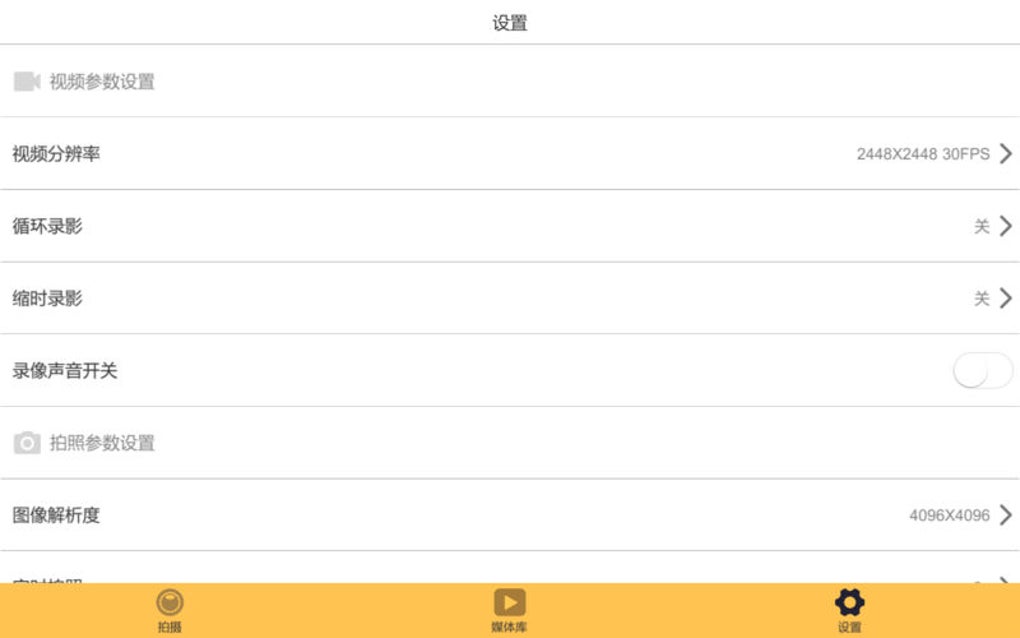
The interface is intentionally simple: a clean dashboard shows connected devices, a file browser displays thumbnails, and a set of toolbar icons gives you instant access to transfer, delete, or stream video. While the program focuses on a narrow range of camera models, it excels at what it does, providing a secure, fast, and reliable bridge between your camera and computer or mobile device. In this review we’ll explore the core features, walk through installation on Windows, macOS, Android, and iOS, and weigh the pros and cons to help you decide if XDV360 is the right companion for your shooting workflow.
Key Features of XDV360
- One‑Click File Transfer: Automatically detect a connected XDV360 camera and copy all new footage to a user‑defined folder.
- Remote Live View: Stream video from the camera to your computer or mobile device over Wi‑Fi for instant playback.
- Batch Rename & Organize: Apply custom naming conventions, create date‑based folders, and sort files by resolution or codec.
- Secure Deletion: Safely erase files from the camera after successful backup to free up storage without risking data loss.
- Firmware Update Manager: Check for the latest firmware releases and install updates directly through the app.
- Cross‑Platform Support: Native clients for Windows 10/11, macOS 10.15+, Android 6.0+, and iOS 13+.
- Low Resource Footprint: Runs smoothly on older laptops and tablets, consuming less than 100 MB RAM during operation.
- Free & No Ads: Fully functional without subscription fees or intrusive advertising.
Installation, Setup, and First‑Time Use
Getting XDV360 up and running is intentionally straightforward. Begin by visiting the official download page and selecting the installer that matches your operating system. For Windows users, download the .exe file, run it, and follow the wizard prompts – the installer automatically adds a shortcut to the Start menu and registers the program as a trusted application. macOS users receive a .dmg package; after opening the disk image, drag the XDV360 icon into the Applications folder. Android and iOS versions are available through Google Play Store and Apple App Store respectively; simply tap “Install” and grant the necessary permissions for storage and network access.
Once installed, launch the application and you’ll be greeted by a minimalistic dashboard. Connect your XDV360 camera to your computer via USB, or turn on the camera’s Wi‑Fi mode to pair with the mobile app. XDV360 will automatically detect the device and display a thumbnail view of the latest footage.
Click the “Download All” button to initiate a bulk transfer; progress is shown in real time, and you can pause or cancel at any moment. For remote viewing, select the “Live Stream” option – the app will establish a low‑latency connection, allowing you to monitor what the camera sees without physically handling it. The first run also prompts you to set a default download folder, configure naming conventions, and decide whether you want automatic firmware checks.
All settings are stored locally, so subsequent sessions start instantly.
The user manual, embedded within the Help menu, offers step‑by‑step screenshots for advanced tasks such as batch renaming, custom folder structures, and manual firmware flashing. Because the software is free, updates are delivered through an automatic updater that checks for new versions every 24 hours, ensuring you always have the latest bug fixes and feature enhancements without paying a cent.
Compatibility, Pros, Cons, and Frequently Asked Questions
Supported Operating Systems
XDV360 runs on the following platforms:
- Windows 10, Windows 11 (64‑bit)
- macOS 10.15 Catalina and later (Intel & Apple Silicon)
- Android 6.0 Marshmallow and newer (ARM & x86 devices)
- iOS 13 and later (iPhone, iPad)
Pros
- Completely free with no hidden costs.
- Fast, one‑click file transfer eliminates manual SD‑card handling.
- Live streaming over Wi‑Fi lets you preview footage instantly.
- Low system requirements – works on older laptops and tablets.
- Integrated firmware updater keeps your camera current.
- Secure deletion ensures no accidental data loss.
- Regular updates delivered automatically.
Cons
- Limited to XDV360 and a few closely related camera models.
- No built‑in video editing tools – you must use third‑party software.
- Mobile apps lack batch rename functionality.
- Occasional Wi‑Fi latency on older routers can affect live view.
- No cloud backup integration out of the box.
Frequently Asked Questions
Can I use XDV360 with non‑XDV360 cameras?
No. XDV360 is built to communicate with the proprietary protocol used by XDV360 cameras only. Attempting to connect other brands will result in an “unsupported device” error.
Is the software safe to download from the official site?
Absolutely. The official XDV360 website provides digitally signed installers that are scanned for malware before distribution. Always download from the vendor’s page to avoid counterfeit versions.
How does XDV360 handle large 4K video files?
The transfer engine uses chunked copying, which prevents memory overflow even with multi‑gigabyte 4K files. Users report transfer speeds of up to 80 MB/s on USB‑3.0 connections.
Can I schedule automatic backups?
The free version does not include a scheduler. However, you can combine XDV360 with Windows Task Scheduler or macOS Automator to launch the app at a set time.
Does XDV360 support editing metadata (e.g., GPS tags)?
Metadata editing is not part of the core feature set. For GPS or EXIF adjustments, export the files and use a dedicated metadata editor.
Conclusion – Why You Should Download XDV360 Today
In a market saturated with generic media managers, XDV360 stands out as a purpose‑built, free utility that delivers exactly what XDV360 owners need: fast, secure file transfer, live preview, and effortless firmware updates. While its narrow device support may seem limiting, the focused development results in a polished experience free from ads, bloatware, or subscription traps. If you already own an XDV360 camera, installing this software will streamline your workflow, protect your footage, and keep your device up‑to‑date with minimal effort. The installation process is simple, the interface is intuitive, and the ongoing updates guarantee long‑term reliability. Don’t waste time manually swapping SD cards or hunting for third‑party tools—click the download button below, install XDV360 on your preferred platform, and start managing your adventure footage the smart way.
Download XDV360 – Free & Secure Camera Software
Overall Rating: 4.5 / 5
Pros: Free, fast transfer, live view, low resource usage.
Cons: Limited to XDV360 models, no built‑in editing.